星期四, 8月 25, 2016

Cisco 2960x 1G Switch 管理小記

Cisco 2960x 1G Switch 管理小記


觀察相關設定
#show   running-config
ip http server
ip http authentication local
ip http secure-server


Task: 停用 http 登入


上面觀察到有開 web 登入
假設只想用 https 登入, 不想用 http 登入


進入到設定模式
#configure   terminal
Enter configuration commands, one per line.  End with CNTL/Z.


下 no ip http server 指令來停止 http
(config)#no  ip http server


離開設定模式
(config)#exit


再次觀察, 使用 pipe ( | ) 加上  include 方式過濾關鍵字
#show   running-config   |   i   http
no ip http server
ip http authentication local
ip http secure-server


這個時候就會發現只能用 https 登入


Task: 更改主機名稱


#configure   terminal
Enter configuration commands, one per line.  End with CNTL/Z.


使用 hostname 指令 更改名稱
(config)#hostname   C11_27U


下完指令之後就會發現主機名稱已經更改
離開設定模式
C11_27U(config)#exit


Task: 取消 telnet
必須先有 ssh


#configure terminal
Enter configuration commands, one per line.  End with CNTL/Z.


(config)#line  vty  0  4
(config-line)#transport input   ssh
(config-line)#transport output   ssh


參考網站

為了怕之後忘記
先記下來

~ enjoy it

後記

設定 web 登入, 參考 http://www.vlab.com.tw/index.php/forum/lan-security/13902-router-switch-cisco

設定驗證方式,如用本機驗證:
Router(config)#ip http authentication local
再開一個本機使用者

Router(config)#uaername oya privilege 15 secret 0 1234


星期三, 8月 24, 2016

Mac Air 連接switch console小記

OS: Mac EI Capitan


因為任務的需求, 今天要設定 Cisco 2960x switch
第1個想法就是..... Console 線要如何連接, 之前 google 到的結果好像要裝 driver
後來看到新的 Mac OS 不需要裝, 所以嘗試了一下


將 console 線接上 Mac


$ls   /dev/   |  grep  -i   usb
像我就會出現 /dev/tty.usbserial-A600IX2Z


使用 screen 指令連接 console
$screen   /dev/tty.usbserial-A600IX2Z   9600


然後就可以連接到 Switch console 了


可以直連的感覺真是美好


先記下來


~ enjoy it

星期四, 7月 14, 2016

Docker 1.12 rc with openSUSE Leap 安裝小記

Docker 1.12 rc with openSUSE Leap 安裝小記

OS: openSUSE Leap 42.1

有個想法是等到 docker 1.12 發行的時候再開始專心跑一遍 docker 實驗.
之前說是 7/16 會發行, 但是今天看到這個....

推遲到 7/28……
那還是先衝 RC 版本吧


其實我的實驗機也是使用 Virtualization:containers 包的套件, 只是沒有用更新的 experimental
先看目前自己 docker 的版本, 目前是 1.11.1-105.1

# zypper  search  -s  docker
Loading repository data...
Reading installed packages...

S | Name                                 | Type       | Version                | Arch   | Repository                                    
--+--------------------------------------+------------+------------------------+--------+-----------------------------------------------
 | docker                               | srcpackage | 1.11.2-119.1           | noarch | Virtualization:containers (openSUSE_Leap_42.1)
 | docker                               | srcpackage | 1.9.1-13.1             | noarch | openSUSE-Leap-42.1-Update                     
 | docker                               | srcpackage | 1.9.1-10.1             | noarch | openSUSE-Leap-42.1-Update                     
 | docker                               | srcpackage | 1.9.1-7.1              | noarch | openSUSE-Leap-42.1-Update                     
 | docker                               | srcpackage | 1.9.0-4.1              | noarch | openSUSE-Leap-42.1-Update                     
i | docker                               | package    | 1.11.1-105.1           | x86_64 | (System Packages)              


透過 zypper 指令新增 repo


用zypper 指令安裝 docker, 這個會讓 docker 版本升級

# zypper -n  install  docker

確認目前安裝的 docker 版本

# docker --version
Docker version 1.12.0-dev, build d4bff5e


接下來就是實驗 docker swarm 的開始了 :)


~ enjoy it

星期一, 7月 04, 2016

Docker automated build with Github小記

Docker automated build with Github小記

OS: openSUSE Leap 42.1

首先先登入 dockerhub
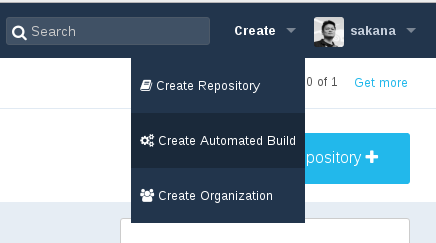
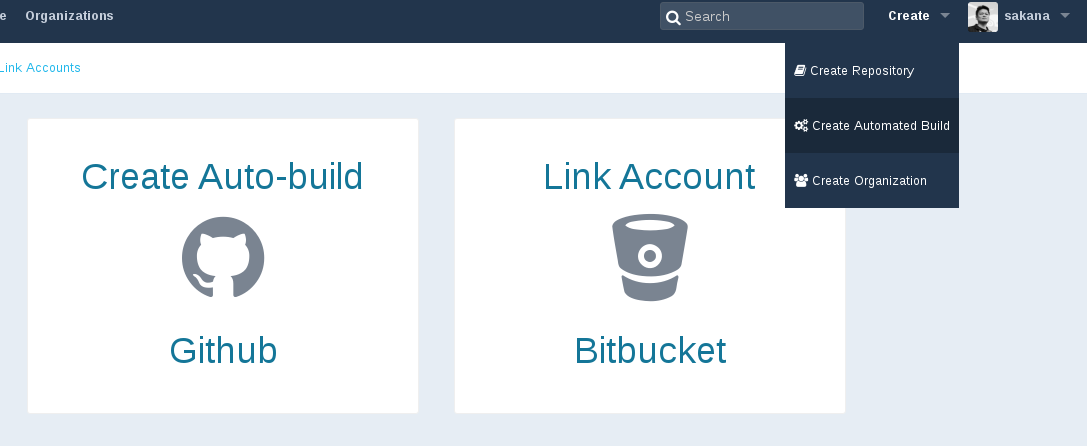
點選右上角 Create  -- > Create Automated Build

2016-07-04 20-23-11 的螢幕擷圖.png


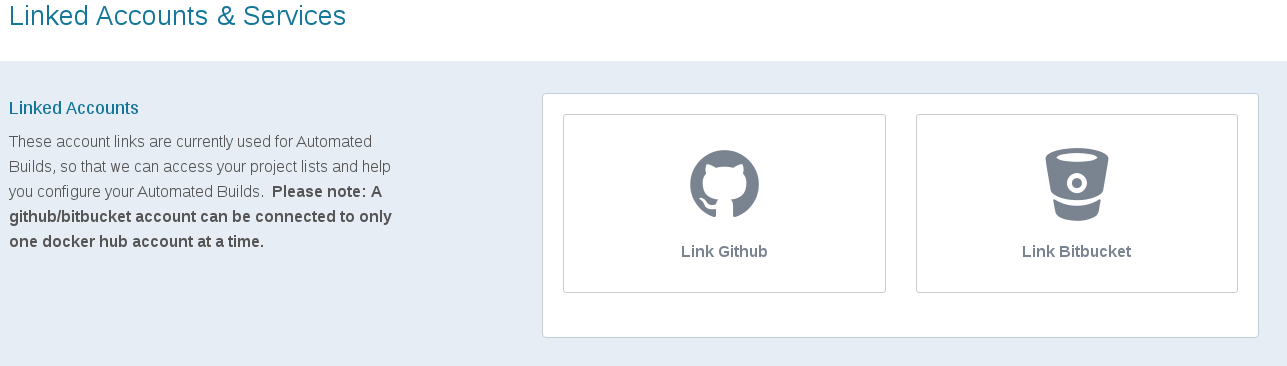
這個時候會出現還沒有跟 Github 或是 Bitbucket 連接的提示
點選 Link Accounts

2016-07-04 20-25-05 的螢幕擷圖.png


點選要連接的服務

2016-07-04 20-26-52 的螢幕擷圖.png

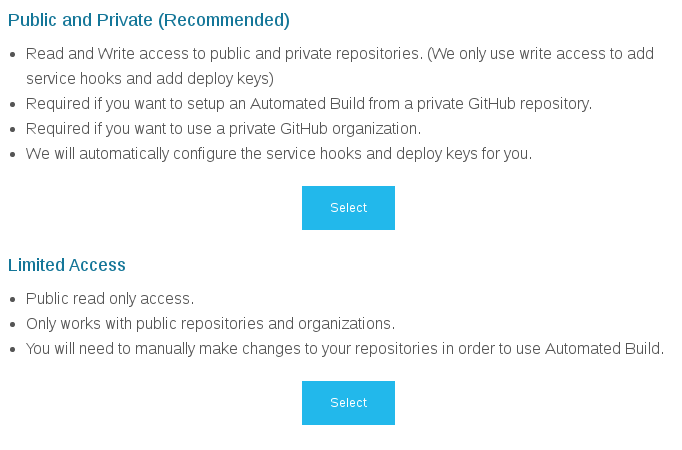
點選要連接的種類
我是先選 Public and Private
點選 Select

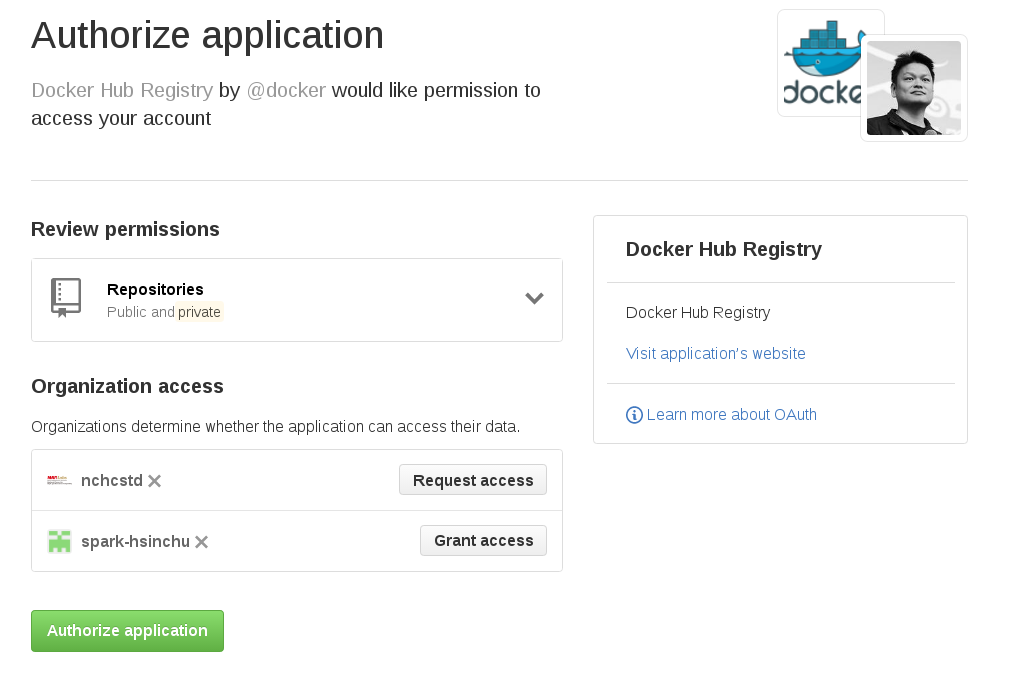
2016-07-04 20-27-54 的螢幕擷圖.png
確認給予認証權限
點選 Authorize application
2016-07-04 20-30-19 的螢幕擷圖.png
輸入密碼確認

2016-07-04 20-32-06 的螢幕擷圖.png


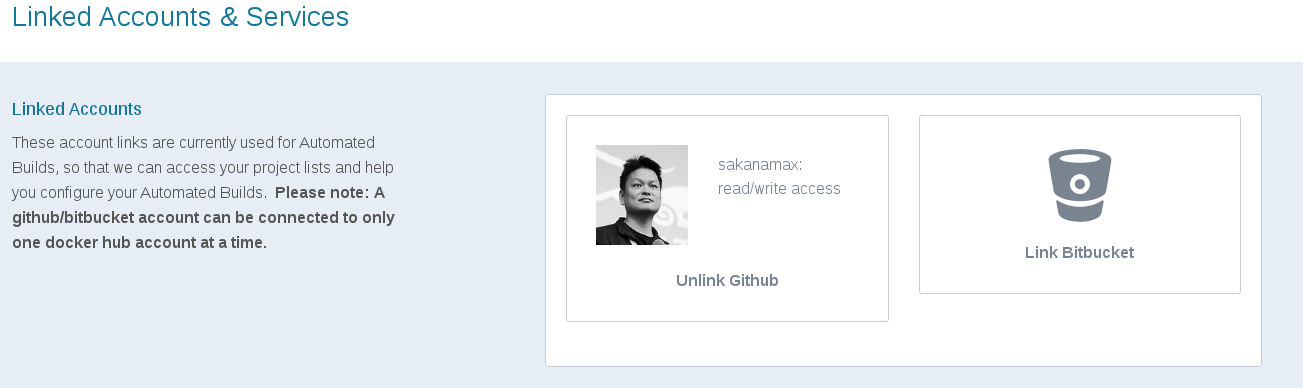
確認完之後就會發現帳戶已經連結

2016-07-04 20-33-33 的螢幕擷圖.png

接下來再次點選右上方 Create -- > Create Automated Build
就會發現圖示已經不一樣了
點選 Create Auto-build
2016-07-04 20-35-36 的螢幕擷圖.png

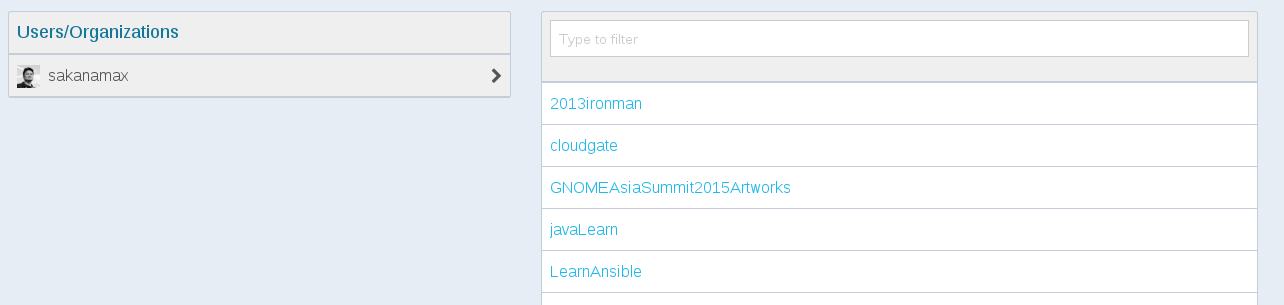
接下來選取要 Auto-build 的 repo

2016-07-04 20-40-29 的螢幕擷圖.png

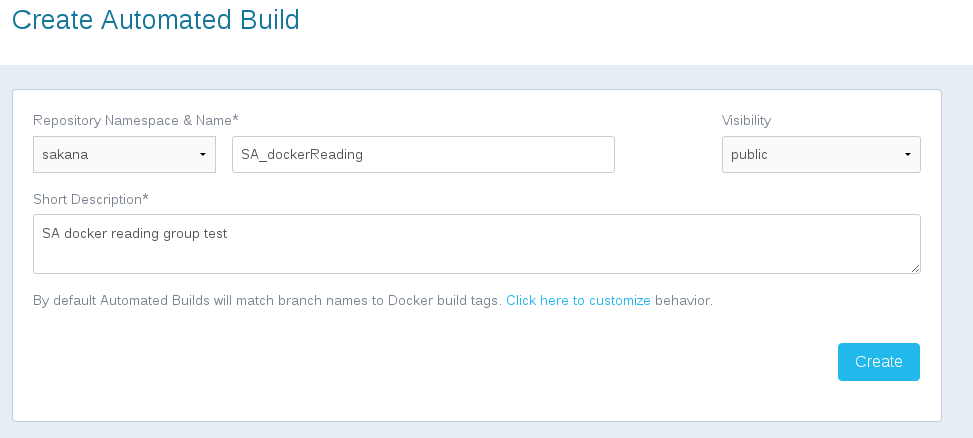
接下來輸入名稱
點選 Create

2016-07-04 20-42-55 的螢幕擷圖.png

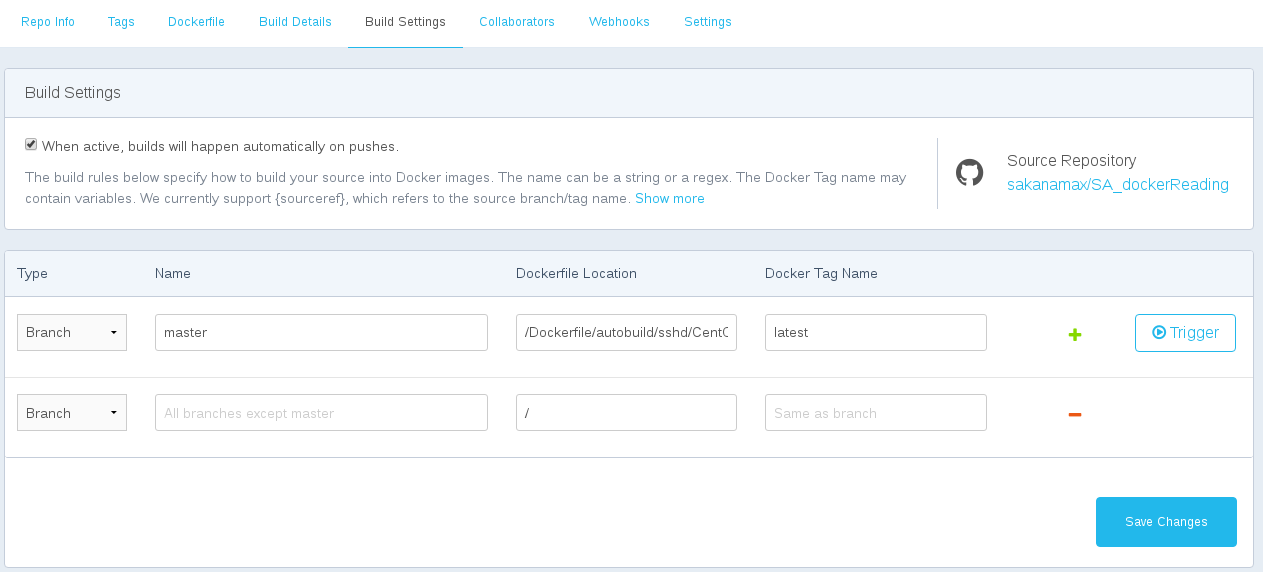
建立完 repo  之後, 點選 Build Settings
輸入 Dockerfile 所在的目錄
點選 Save Changes

2016-07-04 21-00-03 的螢幕擷圖.png


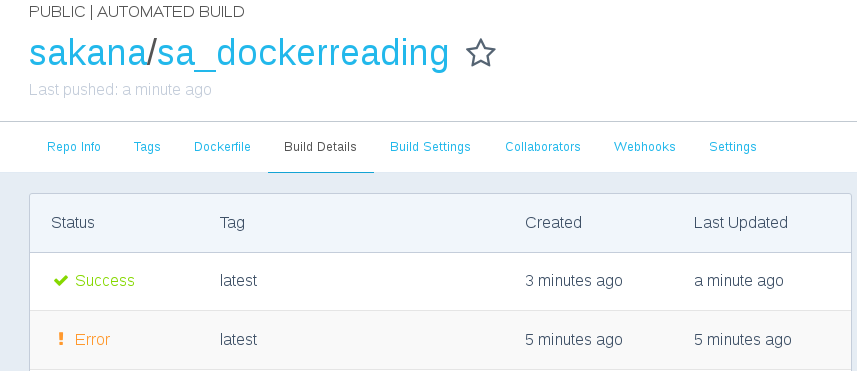
相關資訊可以到 Build Details 觀察
原則上是如果 Github 上面有 push 就會自動 trigger build
下面那個 Error  是我的檔案, 命名不是 Dockerfile, 我通常會加上系統的名稱, 所以目前的習慣是會自己建立一個 autobuild 目錄來存放.

2016-07-04 21-03-59 的螢幕擷圖.png


之後就可以用 docker pull 指令來進行 image pull

2016-07-04 21-10-34 的螢幕擷圖.png

先記下來

~ enjoy it

星期一, 6月 27, 2016

Spark 本機安裝 with Ansible 小記

Spark 本機安裝 with Ansible
現在的實驗環境會透過 Ansible 來管理

所以整理了一下 spark local 套件安裝的 ansible playbook
  • 使用 group 方式控管
  • 安裝 spark 相關套件, 透過變數詢問下載不同版本, 預設是 1.4.0
  • 使用 when: 方式針對不同的 OS 來安裝, 目前有 openSUSE Leap, CentOS, 還有 ubuntu
    • 目前已測試 openSUSE 42.1 / CentOS 7.2 / Ubuntu 14.04

檔案 spark_local.yml

- name: Install spark with local
 hosts: sparkSingle
#  透過 vars_prompt 動態詢問要裝的版本, 預設是 1.4.0
 vars_prompt:
   - name: "spark_version"
     prompt: "Please enter spark version, example 1.4.0"
     private: no
     default: "1.4.0"

 tasks:
   - name: Install java, wget  with openSUSE Leap
# Use sudo before ansible 1.9
#      sudo: True
     become: True
# 使用 pkg 加上 {{ item }} 配合後面的 with_item 來安裝多個套件
     zypper: name={{ item }}
     with_items:
       - java-1.7.0-openjdk-devel
       - wget
     when: ansible_distribution == "openSUSE Leap"

   - name: Install java, wget with CentOS
     become: True
     yum: name={{ item }}
     with_items:
       - java-1.7.0-openjdk-devel
       - wget
     when: ansible_distribution == "CentOS"

   - name: Install java, wget and scala with Ubuntu
     become: True
     apt: name={{ item }} update_cache=yes
     with_items:
       - openjdk-7-jdk
       - wget
       - scala
     when: ansible_distribution == "Ubuntu"

# ----------------------------------------------------------

   - name: Get scala
     shell: wget http://www.scala-lang.org/files/archive/scala-2.10.1.tgz
     when: ansible_distribution == "CentOS" or ansible_distribution == "openSUSE Leap"

   - name: Exact source code of scala
     shell: tar xvf scala-2.10.1.tgz
     when: ansible_distribution == "CentOS" or ansible_distribution == "openSUSE Leap"

   - name: Move scala to /usr/lib
     become: True
     shell: mv scala-2.10.1 /usr/lib
     when: ansible_distribution == "CentOS" or ansible_distribution == "openSUSE Leap"

   - name: create link for scala
     become: True
     shell: ln -s /usr/lib/scala-2.10.1/  /usr/lib/scala
     when: ansible_distribution == "CentOS" or ansible_distribution == "openSUSE Leap"

   - name: touch .bashrc
     shell: touch ~/.bashrc
     when: ansible_distribution == "CentOS" or ansible_distribution == "openSUSE Leap"

   - name: export $PATH to .bashrc
     lineinfile: dest=~/.bashrc line="export PATH=$PATH:/usr/lib/scala/bin"
     when: ansible_distribution == "CentOS" or ansible_distribution == "openSUSE Leap"

# ----------------------------------------------------------


# 由於沒有在 general option 使用 sudo, 這邊在使用 shell module 抓下來就是使用者自己的身份額非 root
# 這邊用 spark 1.4.0 版本
   - name: Download spark with pre-build hadoop
       shell: wget    http://archive.apache.org/dist/spark/spark-{{ spark_version }}/spark-{{ spark_version }}-bin-hadoop2.6.tgz

# 解開 source code
   - name: Exact pre-build source
     shell: tar zxvf spark-*.tgz

   - name: Rename spark folder
     shell: mv ~/spark*/ ~/spark


# 測試 jps 指令
   - name: Testing jps command
     command: jps
     register: jps
   - debug: var=jps.stdout_lines

執行方式

將要安裝 spark 的主機加入 sparkSingle 群組
然後執行 spark_local.yml 即可

先記下來

~ enjoy it